

Difference between Add-In and Agent
There are two different pieces of software available, the Outlook Add-In that allows you to choose a signature on send in Outlook Web and Desktop, and the Desktop agent that updates the signature in your Outlook client on Windows and MacOS.
Outlook for Web installation
To see and be able to insert signatures, users will need to install the Exclaimer Add-In.
Go to https://outlook.office365.com and click "New Message" and click the three dots next to the "Send" button.

Then, click "Get Add-Ins" and search for "Exclaimer". Follow the instructions below for installation.
Outlook Desktop Installation
To see the signatures before sending, users will need to install the Exclaimer Add-In for signatures.
Start Outlook, and open your mailbox. In the ribbon at the top, on the "Home" tab to the right click "Get Add-Ins"

Search for "Exclaimer", and click the "Exclaimer Cloud for Outlook" Add-In
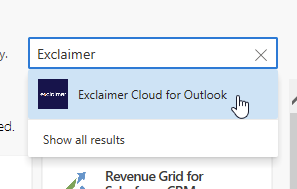
Click the "Add" button, and then click "Get Started". You will then receive a short instruction on where the plugin is located.


Close the popup, and start composing a new email. You should now have the Exclaimer Cloud-button in the menu. You might have to restart Outlook for this to appear.
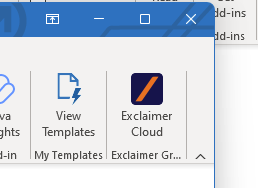
If you have a signature enabled with the "See before you send" option, click the Exclaimer Cloud-button and you can choose between the available signatures.
To deploy to all users in your tenant automatically, see this link:
https://support.portal.exclaimer.com/hc/en-gb/articles/360020741398